
How to Use the Sales Tax Calculator
Follow a step-by-step sales tax guide to add tax, remove included tax, find an implied rate, choose a combined rate, and interpret each result.
How does this guide help you use the Sales Tax Calculator?
This guide explains which values to enter, how the Sales Tax Calculator processes them, and how to read the resulting estimate. Follow the sections below to check assumptions, compare realistic scenarios, avoid common input mistakes, and understand when an official source or qualified professional should take priority over a planning result.
This guide explains how to use the Sales Tax Calculator for forward, reverse, and implied-rate calculations. The arithmetic uses the values entered; the user must identify the correct taxable amount and combined jurisdiction rate.
Before You Start
Gather one transaction scenario and confirm what the displayed prices represent.
- The taxable pre-tax price or tax-inclusive total
- The combined state and local rate, when known
- The transaction location and delivery or sourcing location
- The item's or service's taxability and any exemption
- The currency used for displaying the result
Step 1: Choose a Calculation Type
- Add Tax: use a pre-tax price and rate to calculate tax and total.
- Remove Included Tax: use a tax-inclusive total and rate to recover the pre-tax price.
- Find Tax Rate: use the pre-tax and total prices to calculate the implied combined rate.
Step 2: Select the Display Currency
Search for and select the currency used by the transaction. The currency selector controls number formatting only. It does not perform currency conversion or select a tax jurisdiction.
Step 3A: Add Sales Tax
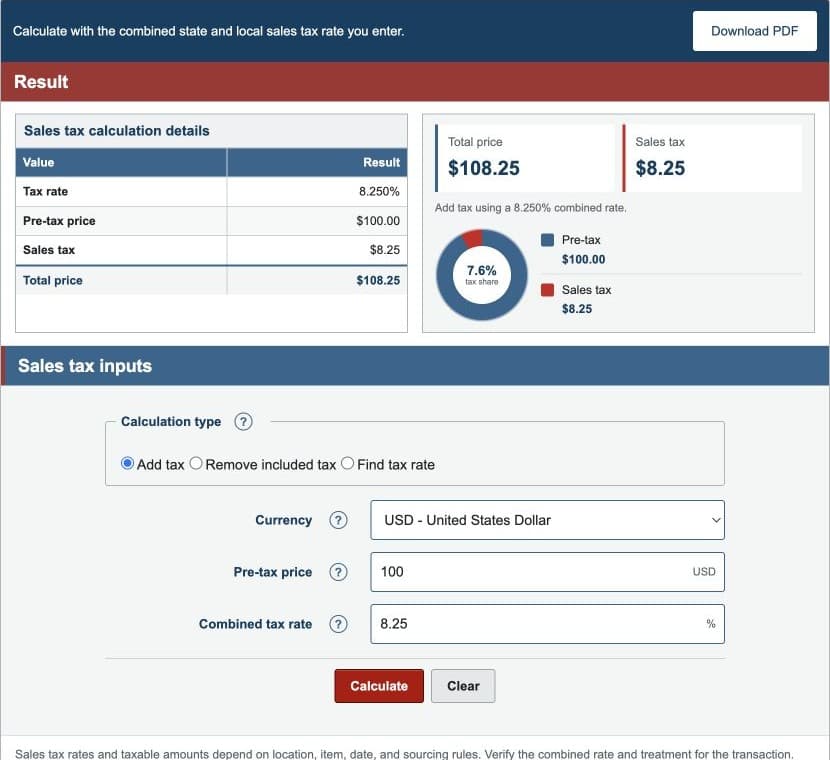
Enter the taxable pre-tax price and the combined percentage rate. The calculator multiplies the price by the rate and adds the result to the price.
Step 3B: Remove Included Sales Tax
Enter the tax-inclusive total and combined rate. The calculator divides the total by one plus the decimal rate. Do not subtract the tax percentage directly from the total because sales tax was originally calculated from the smaller pre-tax price.
Step 3C: Find the Implied Tax Rate
Enter the pre-tax price and final total. The final total must be at least the pre-tax amount. The calculator divides the difference by the pre-tax price and expresses the result as a percentage.
Step 4: Read the Results
- Pre-tax price: the modeled taxable amount before sales tax.
- Sales tax: the difference between total and pre-tax price.
- Total price: the pre-tax price plus sales tax.
- Combined tax rate: the entered or implied percentage.
- Tax multiplier: one plus the decimal rate, used to add or reverse tax.
The selected currency formats price results; it does not convert them.
Worked Example: Add 8.25% Sales Tax
The default scenario uses a $100.00 taxable price and an 8.25% combined rate.
| Pre-tax price | $100.00 |
|---|---|
| Combined tax rate | 8.250% |
| Sales tax | $8.25 |
| Total price | $108.25 |
| Tax multiplier | 1.0825 |
These values come from the same production engine used on the calculator and Examples pages.
Step 5: Verify the Transaction Assumptions
- Confirm the item or service is taxable.
- Confirm discounts, fees, shipping, and exemptions are treated correctly.
- Use the official combined rate for the applicable location.
- Check whether origin or destination sourcing controls the rate.
- Apply the tax authority's required rounding method.
If a receipt differs, the cause may be a different taxable base, jurisdiction component, sourcing rule, or transaction-level rounding method rather than the percentage arithmetic.
References
- California Department of Tax and Fee Administration - Sales and Use Tax Rate FAQ
- California Department of Tax and Fee Administration - City and County Rate Lookup
- New York State Department of Taxation and Finance - Sales Tax Rates and Calculation
Review the sales tax formulas and worked sales tax examples for the exact arithmetic.