
How to Use the Calorie Calculator
Learn how to enter current measurements, choose a BMR formula and activity factor, compare calorie targets, and calibrate estimated maintenance calories.
How does this guide help you use the Calorie Calculator?
This guide explains which values to enter, how the Calorie Calculator processes them, and how to read the resulting estimate. Follow the sections below to check assumptions, compare realistic scenarios, avoid common input mistakes, and understand when an official source or qualified professional should take priority over a planning result.
This guide explains how to use the Calorie Calculator without treating a population equation as a measured prescription. The most important user-controlled assumption is often the activity factor.
Before You Start
- Use current measurements rather than a goal weight.
- Choose one typical activity assumption, not your busiest day.
- Remember that food tracking and activity estimates both contain error.
- Use the result as a starting estimate and compare it with a consistent trend.
- Do not use this adult calculator for pregnancy, breastfeeding, children, or medical nutrition therapy.
Step 1: Enter Current Measurements
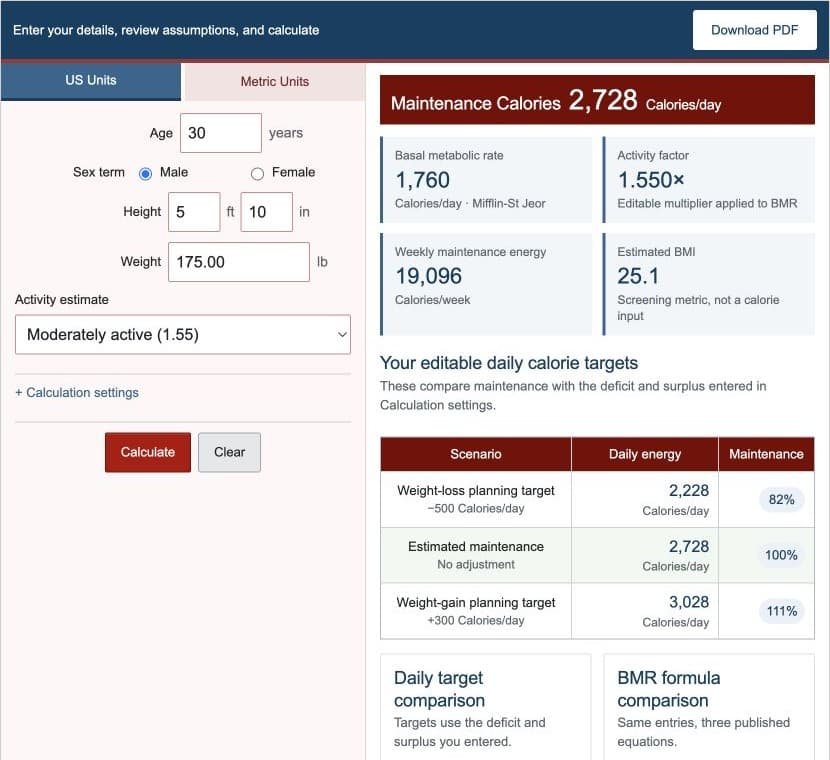
Enter age in completed years, height, and current body weight. Select U.S. units for feet, inches, and pounds or metric units for centimeters and kilograms. The engine normalizes measurements before applying any equation.
Step 2: Choose an Activity Estimate
| Label | Initial factor | How to interpret it |
|---|---|---|
| Sedentary | 1.200 | Little planned activity beyond ordinary living |
| Lightly active | 1.375 | Some additional movement or light exercise |
| Moderately active | 1.550 | Regular moderate activity across the week |
| Very active | 1.725 | Frequent demanding training or physical work |
| Extra active | 1.900 | Very high sustained activity |
| Custom | User entered | A multiplier supported by personal observation or professional guidance |
These labels are broad planning presets. Open Calculation settings to inspect or edit the factor used in the result.
Step 3: Choose a BMR Formula
| Formula | Inputs used | Important limitation |
|---|---|---|
| Mifflin-St Jeor | Weight, height, age, sex term | Population equation, not direct measurement |
| Revised Harris-Benedict | Weight, height, age, sex term | Different coefficients can produce a different estimate |
| Katch-McArdle | Weight and body-fat percentage | Depends directly on body-fat accuracy |
Mifflin-St Jeor is the default. The result section still shows all three equation estimates for comparison.
Step 4: Enter Body Fat for Katch-McArdle
Katch-McArdle calculates estimated lean mass from body weight and body-fat percentage. If the body-fat estimate is too high or too low, the resulting BMR moves with it. Use the Body Fat Calculator only as an estimate, or use a professionally measured value when available.
Step 5: Enter a Deficit and Surplus
Enter the daily adjustments you want to compare. The calculator subtracts the deficit from maintenance and adds the surplus. It does not infer a goal or force a fixed number.
Step 6: Read the Results
- Maintenance calories: selected BMR multiplied by the activity factor.
- Basal metabolic rate: the selected resting-energy estimate.
- Activity factor: the exact multiplier used.
- Weekly maintenance energy: daily maintenance multiplied by seven.
- Estimated BMI: a screening metric based on height and weight, not an energy input.
- Daily targets: the entered deficit, maintenance, and surplus scenarios.
- Formula comparison: all three BMR estimates for the same inputs.
Step 7: Use the Charts and Text Alternatives
The daily-target chart compares the three calorie scenarios. The BMR chart compares equation outputs. The accompanying tables provide the same values without relying on color or pointer interaction.
A large difference among formulas is a reason to treat the estimate cautiously, not a reason to select whichever result is most desirable.
Step 8: Calibrate the Estimate
- Use one estimate consistently for a reasonable observation period.
- Track intake with the same method each day.
- Measure body weight under similar conditions and compare weekly averages.
- Consider changes in movement, training, sleep, medication, and health.
- Adjust the activity factor or target gradually if the observed trend remains different.
The NIDDK Body Weight Planner uses a dynamic model for goal planning. This calculator intentionally uses a simpler static TDEE scenario and does not model metabolic adaptation over time.
Worked Example: Maintenance Calories
A 30-year-old man is 5 feet 10 inches tall, weighs 175 pounds, selects Mifflin-St Jeor, and uses an activity factor of 1.55.
| Selected BMR | 1760 Calories/day |
|---|---|
| Maintenance calories | 2728 Calories/day |
| Weekly maintenance energy | 19096 Calories/week |
| Deficit scenario | 2228 Calories/day |
| Surplus scenario | 3028 Calories/day |
These values are generated by the same tested engine as the live calculator.
Step 9: Understand the Limitations
- Prediction equations estimate resting energy from group data and can differ from indirect calorimetry.
- The activity factor is a broad multiplier, not a wearable measurement.
- Katch-McArdle inherits body-fat measurement error.
- The calculation does not model metabolic adaptation or changing body composition.
- The deficit and surplus are user-entered arithmetic scenarios.
- The configured age and measurement ranges are for general adult use.
References
- Mifflin and colleagues - Resting Energy Expenditure Equation
- Roza and Shizgal - Revised Harris-Benedict Equations
- NIDDK - Body Weight Planner
Review the calorie formulas and worked examples for the exact calculations.